Guide
From traced pattern to a sheet-by-sheet SVG master
1. Prepare the converter output
The nester reads the editable piece groups from the SVG and cardstock assignments from the YAML manifest. In the models repository, run the lowpoly converter first:
make -C tools/lowpoly-pdf-to-svg CONFIG="$PWD/data/bowser/bowser.yaml"The converter needs the source PDF locally. It writes data/bowser/bowser.svg; the PDF itself is not needed by the nester. Keep the SVG and YAML paths together so the material names match.
2. Describe your available sheets
Start with config/bowser-letter.json. It records a minimum piece gap, rotation search step, material colors, and an inventory list. Each row gives a material ID, sheet width and height in millimetres, and how many sheets are available:
{
  "minimum_gap_mm": 0.2,
  "rotation_step_degrees": 5.0,
  "sheets": [
    {"material": "red", "width_mm": 215.9, "height_mm": 279.4, "quantity": 7}
  ]
}
Edit the inventory to match your stock. You can include different sheet sizes for the same material by adding another row. The minimum gap is the clearance between pieces; choose a value that accounts for your cutter and cardstock.
3. Run the nesting command
From tools/papercraft-nester in the models repository:
python -m pip install -e .
papercraft-nester nest \
  --svg ../../data/bowser/bowser.svg \
  --manifest ../../data/bowser/bowser.yaml \
  --inventory config/bowser-letter.json \
  --output output/bowser-letter-master.svg
You can also run python -m papercraft_nester.cli nest with PYTHONPATH=src. Optional flags include --gap-mm and --rotation-step to override the inventory settings, and --source-baseline to write the original page placement for comparison.
Pages that hold a single colour keep their PDF layout; pieces from mixed-colour pages (after a recolour, for example) are packed into the gaps of their colour’s sheets, then onto new sheets. Pieces that move are placed snugly: every angle and position is tried on a 1 mm raster, and the one that adds least to the used region seen from the sheet’s top edge wins, so pieces tuck into each other’s curves and the clean offcut at the bottom stays as large as possible. Add --export nested-export.svg to also write the nested sheets as a lowpoly-export/1 file, with every piece’s coordinates moved onto its sheet. Give that file to cutpath (step 5) to order the tool paths on the nested sheets; its pages are numbered by sheet.
Recut a few pieces
When some pieces are already cut and only a few need cutting again (a bad cut, a torn tab), list them in a text file and pass it with --only recut.txt. Each line (or comma-separated entry) is a piece ID (piece-11-01 or 11-01), the piece number drawn on the cut piece (27, which names both mirror twins since they share it), or a number with one of that piece’s edge labels (27:DB) to name just one twin; text after # is a comment. Only those pieces are nested, packed snugly onto fresh sheets of their colour, with the labels they already have, so they glue onto the pieces already cut. Run cutpath on the --export file as usual for the Cricut upload.
The report lists the source and packed sheet counts, utilization per packed sheet, and estimated inter-piece reposition distance. If the heuristic cannot fit the inventory, it writes the source page arrangement as a comparison baseline and reports that choice.
4. Inspect and hand off the output
Open output/bowser-letter-master.svg in Inkscape. It has one page per physical sheet, with pieces grouped by material and their original operation groups and annotations preserved. Review the cut, score, and draw operations before sending the design to Cricut Design Space. SVG import may assign vectors to cut operations; inspect and set the intended operations in Design Space.
The current output retains glue tabs intact. Tab trimming is not implemented because the converter handoff does not yet distinguish tab geometry from the visible piece body.
5. Order the cut and fold paths per sheet
cutpath keeps every piece where it is and only orders the tool paths, one sheet at a time. It reads the converter’s export SVG (<model>-export.svg), so it works even when glue pairs are still wrong.
papercraft-nester cutpath \
  --svg ../../data/bowser/bowser-export.svg \
  --output ../../data/bowser/bowser-cutplan.svg
The output has the layers Cut, Fold valley, Fold mountain and Draw (labels as single-stroke pen paths), plus a hidden Review layer with the moves. A piece is always cut in one go, and valley and mountain folds are separate passes. The tool is lifted on every move, so travel never cuts or scores the paper; the solver only makes those moves shorter.
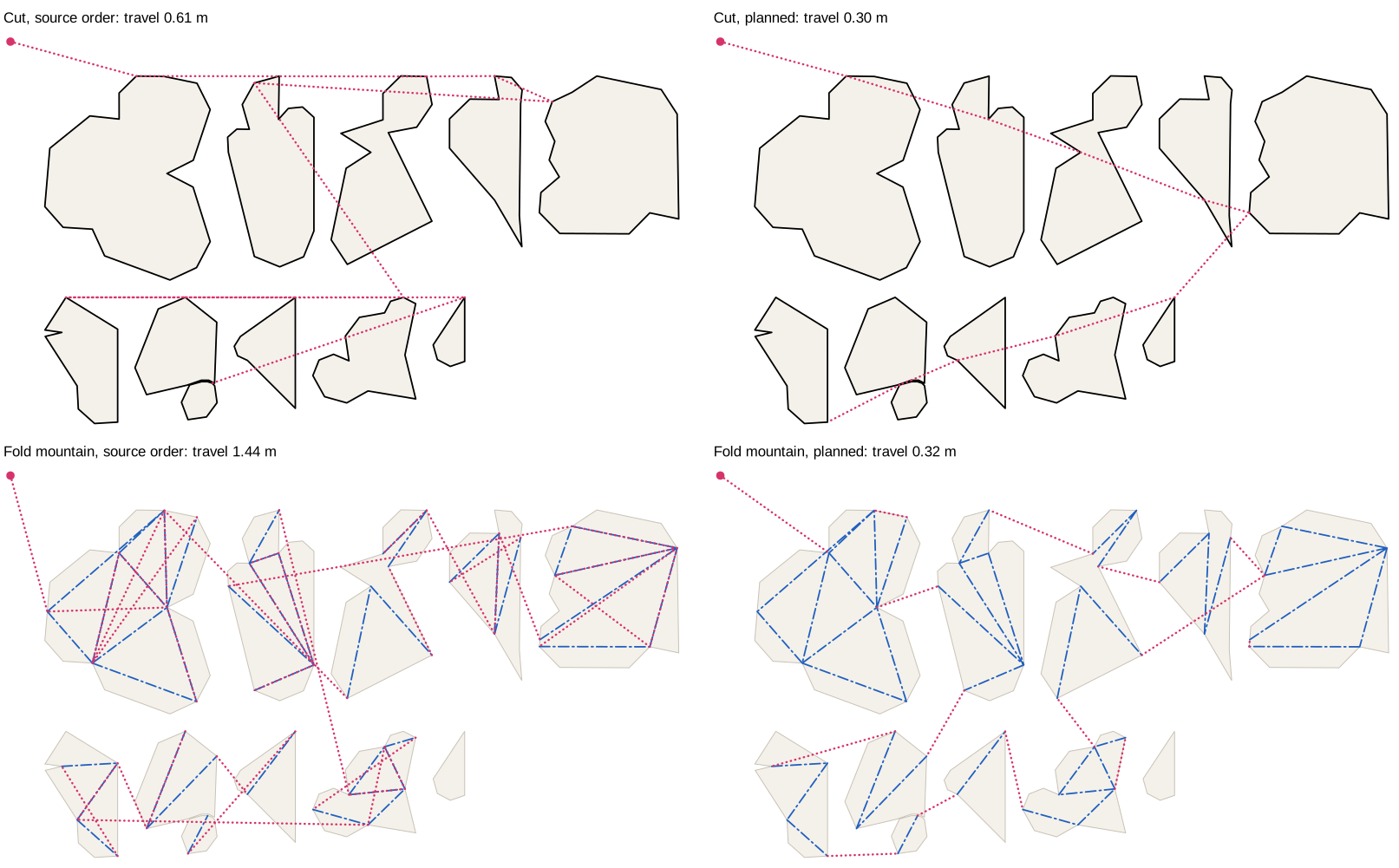
Regenerate the figure with PYTHONPATH=src python scripts/cutpath-figure.py examples/example-export.svg img/cutpath-example.svg (examples/example-export.svg is the converter’s synthetic example model).
Interactive map. Pick a sheet and switch the layers Cut, Fold valley, Fold mountain and Draw on or off. Every pass is drawn the same way in its own colour: numbered nodes where the tool goes down (0 = sheet corner), arrows along the path, dotted lifted moves, and fold order at each fold’s midpoint. Green is saved offcut, orange a blade-down cut through waste (--stay-down).
Regenerate with PYTHONPATH=src python scripts/cutpath-viewer.py EXPORT.svg OUT.html --stay-down.
Cutting through waste. --stay-down adds two steps after the shortest route:
- Offcuts to save. The pieces are closed over every gap or notch narrower than the strip width (10 mm, or
--stay-down 6). What is left of the sheet is split at every neck narrower than--min-width(20 mm), so no saved piece has a thin part that could tear, and each piece of at least--min-area(50 cm²) is kept as clean offcut; thin strips, notches and small leftovers are waste. - Travel through waste. A move between two outlines stays blade-down only when it is a single straight cut through waste; otherwise the tool lifts, since a detour through waste would cost more than the lift. It never enters a piece or a saved offcut, and away from its ends it keeps 0.3 mm from every outline and every earlier move, so no line is cut twice (the outlines and these moves form one Euler path per stroke).
Folds and labels always lift (lines that touch end to end are still scored in one stroke). The CSV column recut_mm measures any length the tool would go over twice; it is 0 on Bowser and a warning is printed otherwise. The saved offcuts are shaded in the hidden Review layer and their area is in the CSV. Joined outlines become one path, so in Inkscape such a path covers several pieces (data-piece lists them). On Bowser this takes the cut lifts from 178 to 127, cutting 0.9 m through waste; 9 of the 21 sheets keep an offcut (50 to 115 cm²), since the source layout leaves little open paper.
One Cricut upload. <model>-cutplan-cricut.svg (or --cricut FILE) holds every sheet side by side, one row per cardstock colour. Each sheet is up to four ungrouped compound paths labelled Page NN <colour> · <pass> (<tool>), so the file holds four layers per sheet at most. After import, select one sheet’s layers and Attach them so Design Space keeps them on one mat.
Per-sheet files for Cricut. Next to the plan, cutpath writes one SVG per sheet (<model>-cutplan-sheets/<model>-cutplan-page-NN-<colour>.svg, or --sheets DIR), sized to the sheet. Each holds one compound path per tool and no groups, so Design Space imports it as four layers: Cut (fine-point blade), Fold valley (debossing tip), Fold mountain (double scoring wheel) and Draw (pen). The subpaths are in the planned order, and each outline starts at its planned corner and runs open (no Z) back to it.
Shared edges. An edge that lies within --share-tol (default 0.35 mm) of an edge a neighbour already cut is cut only once. Keep this tolerance at the blade’s precision: a larger value would cut one piece along its neighbour’s line and trim that piece. On the source PDF layout the pieces are at least 1.8 mm apart, so nothing is shared; the saving comes once nesting places pieces edge to edge.